
How to connect Wio Link board to Google Spreadsheets using IFTTT
Inspired by this tutorial and also this other tutorial for connecting the Wio Link board to IFTTT.com (IFTTT stands for if this then that) I tried connecting the updates from my plant setup to a spreadsheet on Google sheets, in order to save all the data it collected along the way, but also to setup options for notifications on many different platforms.
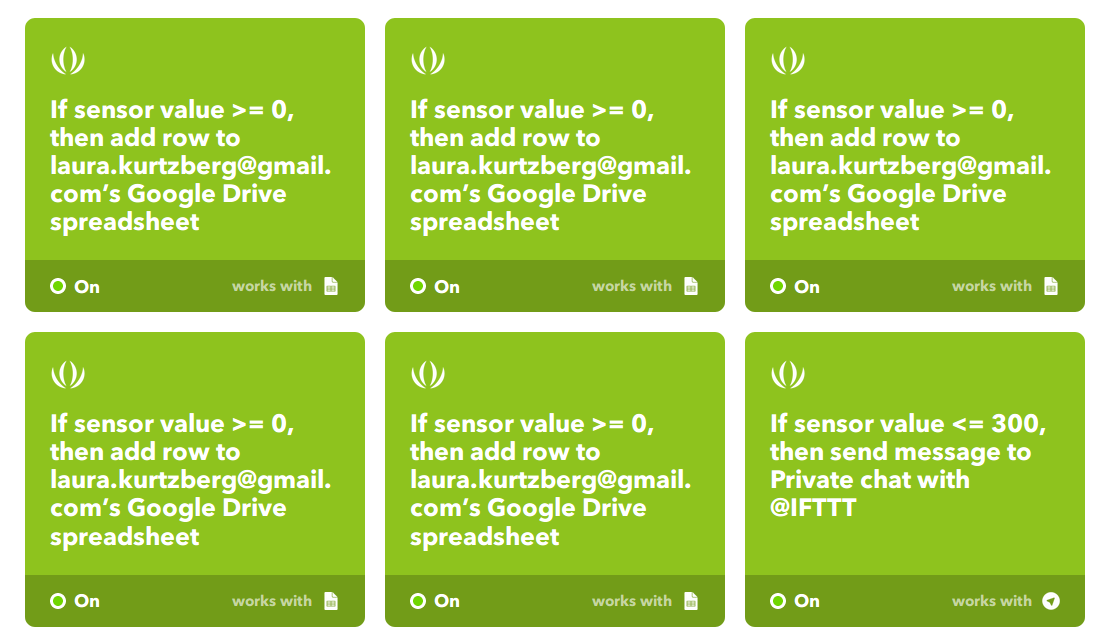
Note: besides being a useful idea for storing data, IFTTT also connects to social media, opening up many new pathways for Plant Friend to connect to a larger community or automatically create posts on Facebook, Twitter, Instagram, and more.
Using my own account on IFTTT, I logged in and followed the instructions from the tutorial to connect a new “trigger” called Seeed Studio. Seeed Studio is the brand that makes the Wio Link, so they already have everything to connect to a pre-existing Wio Link account. IFTTT calls new actions to take “recipes” and completed functionalities “applets”. First, I created a recipe to send me a notification on the Telegram messaging app if my plant was ever under-watered. I wanted to make sure that my plant was healthy throughout this project, and not just after the monitoring system was completed! This first idea was easy to set up by selecting the name of the soil moisture sensor in the dropdown that appears when creating a new Seeed Studio recipe android and selecting “Monitor a Sensor Value”. I input that the trigger should occur if the value of the soil moisture sensor was ever at 300 or below - such a low value would indicate that the plant probably needs watering.

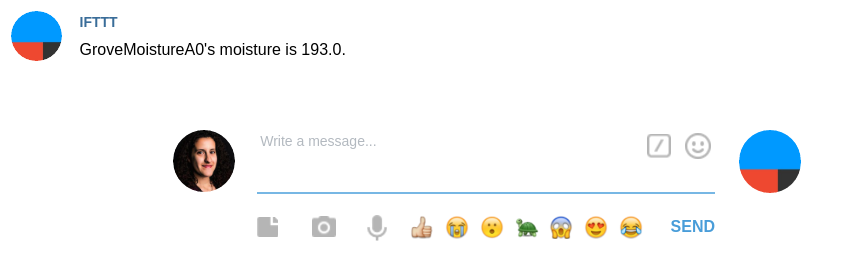
Then, for the “that” in the recipe of “if this then that”, I chose a Telegram message. I had already connected Telegram, so all I had to do was leave the default settings in the recipe for what kind of message would be sent (it can be changed to include different words and variables). I left the finished applet turned ‘on’ and sure enough, a few days later I got a notification to water my plant!
Connect to Google Spreadsheets
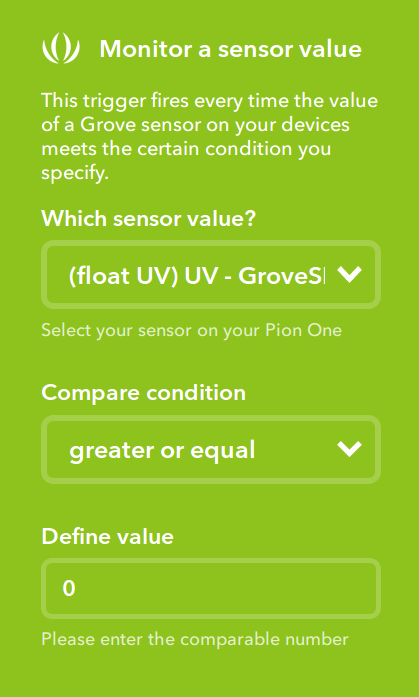
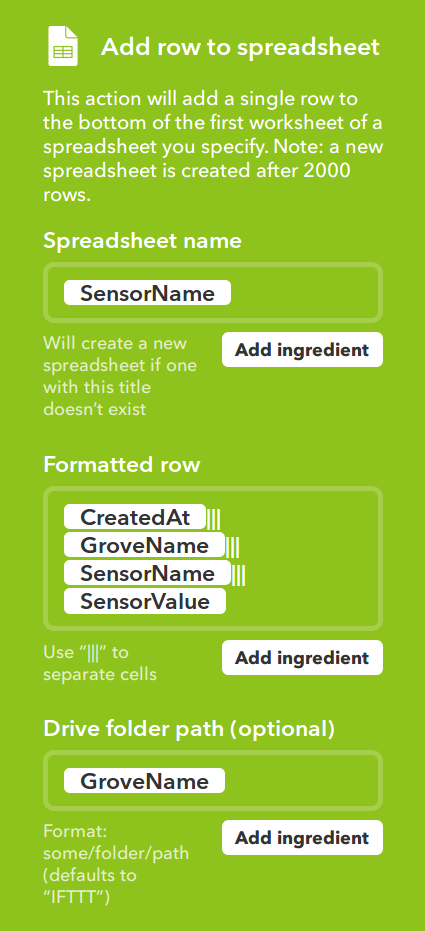
For my web app, I was interested in collecting an easily accesible dataset on Google sheets of all the data that was generated by the Plant Friend project. For this, the end result was changed by simply connecting to Google spreadsheets and choosing to create a new row in a new spreadsheet for each sensor. Here is a view the completed applet (Applet ID 76829937d) on IFTTT:
Conclusion
It isn’t difficult to connect a physical computing setup that used a Wio Link board to other apps to receive emails, notifications, or even create social media posts. At the same time, there are limitations to this functionality. For example, after 2000 values, the recipe for Google spreadsheets creats a new spreadsheet instead of continuing to add to the original dataset. This is limiting when trying to keep all of the data in one place, but one spreadsheet can only hold so much.